목차

Roo Code is an open-source & AI-powered coding assistant that runs in VS Code. It can read and write files across your entire codebase, execute terminal commands, browse the web, and tackle complex multi-step tasks through natural conversation—it's like having a whole dev team right inside your editor.
In this guide, we'll walk you through how to intergrate SiliconFlow APIs into Roo Code, giving you access to 200+ frontier models at competitive pricing.
Step 1: Prerequisites
Get Your SiliconFlow API Key
Before you begin, ensure you have a valid SiliconFlow account:
Register a SiliconFlow account at https://cloud.siliconflow.com/. You can sign up with Google or GitHub.
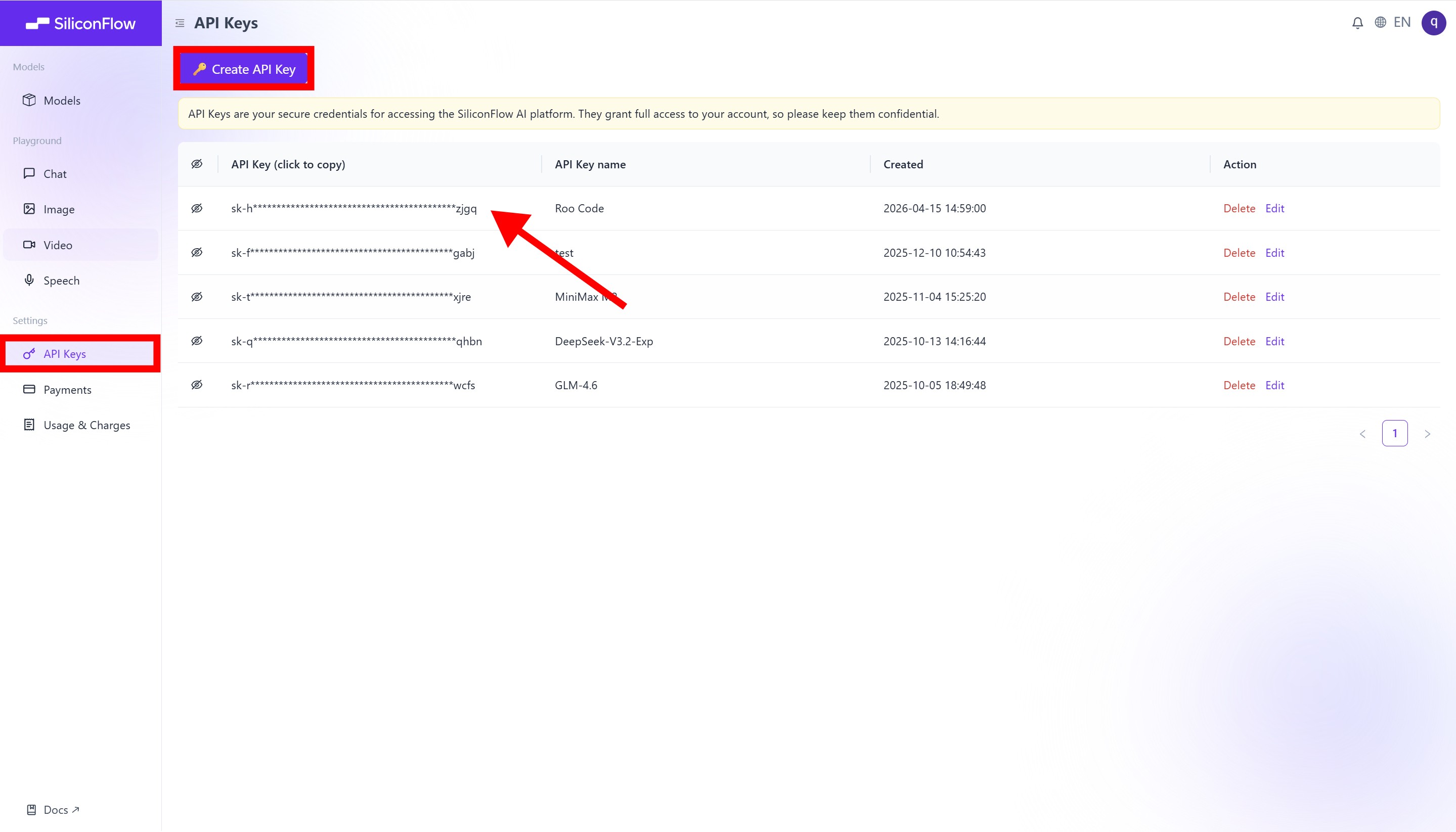
Log in and navigate to
API Keysin the dashboard.Click
🔑Create API Keyand add a name to your key to help you identify it later, then confirm to create it.Click the API key to copy it automatically.
⚠️ Note: Keep your API key secure; you will need it for the configuration in Step 3.
Step 2: Install Roo Code
Next, install the Roo Code extension in VS Code.
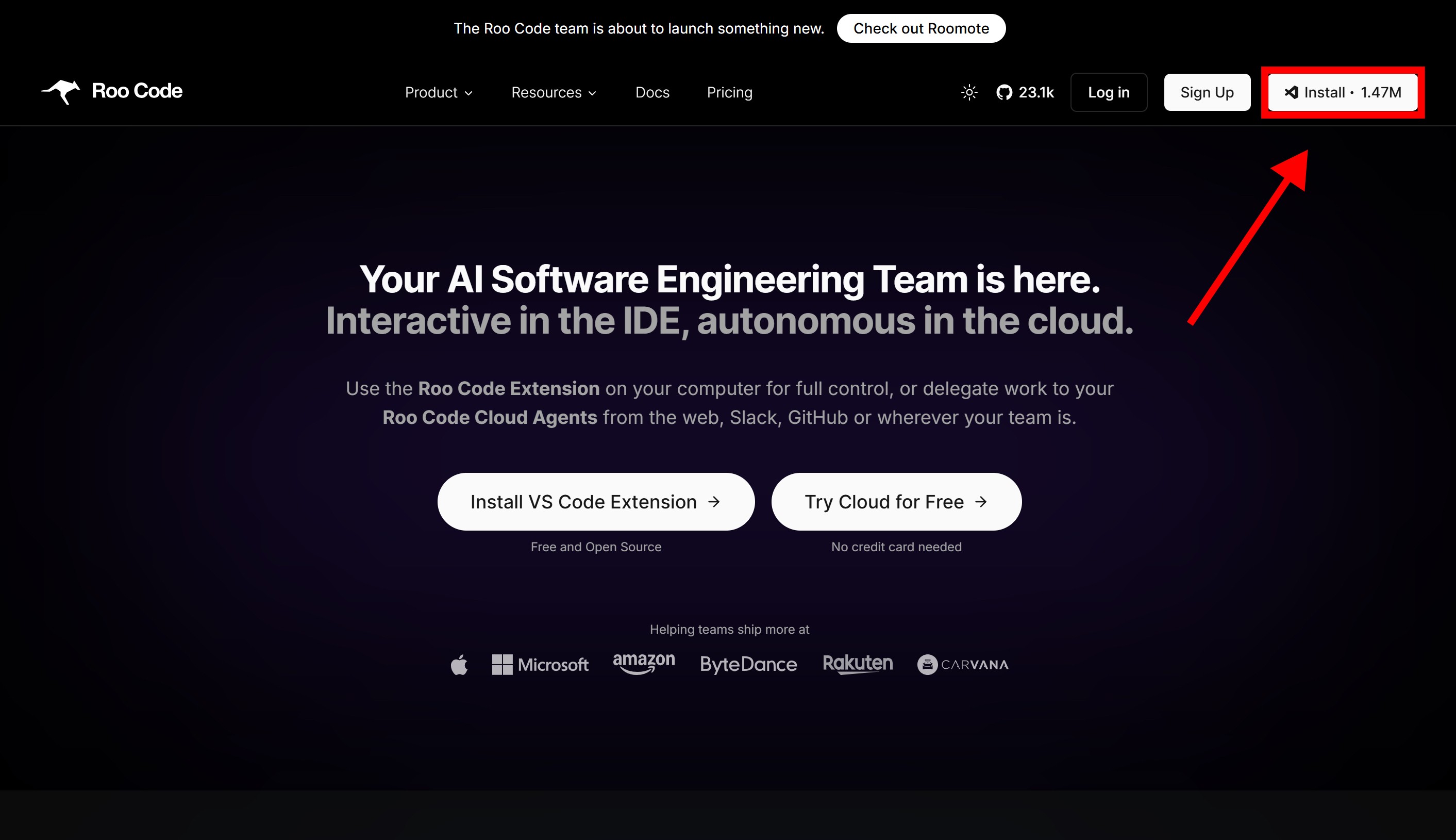
Visit the official Roo Code website: https://roocode.com/
Click Install in the top-right corner.
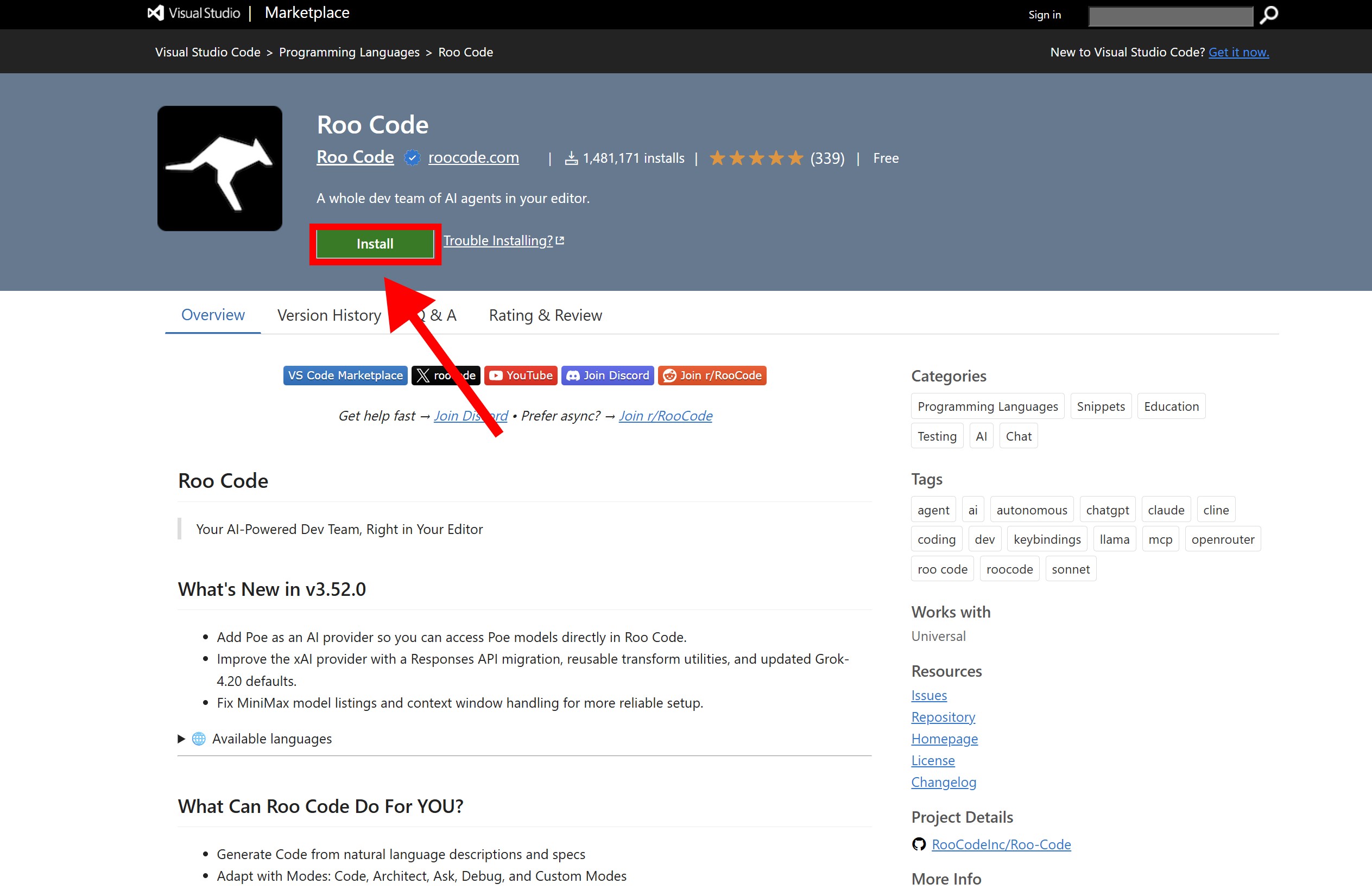
You will be redirected to the VS Code Marketplace; Click Install to proceed
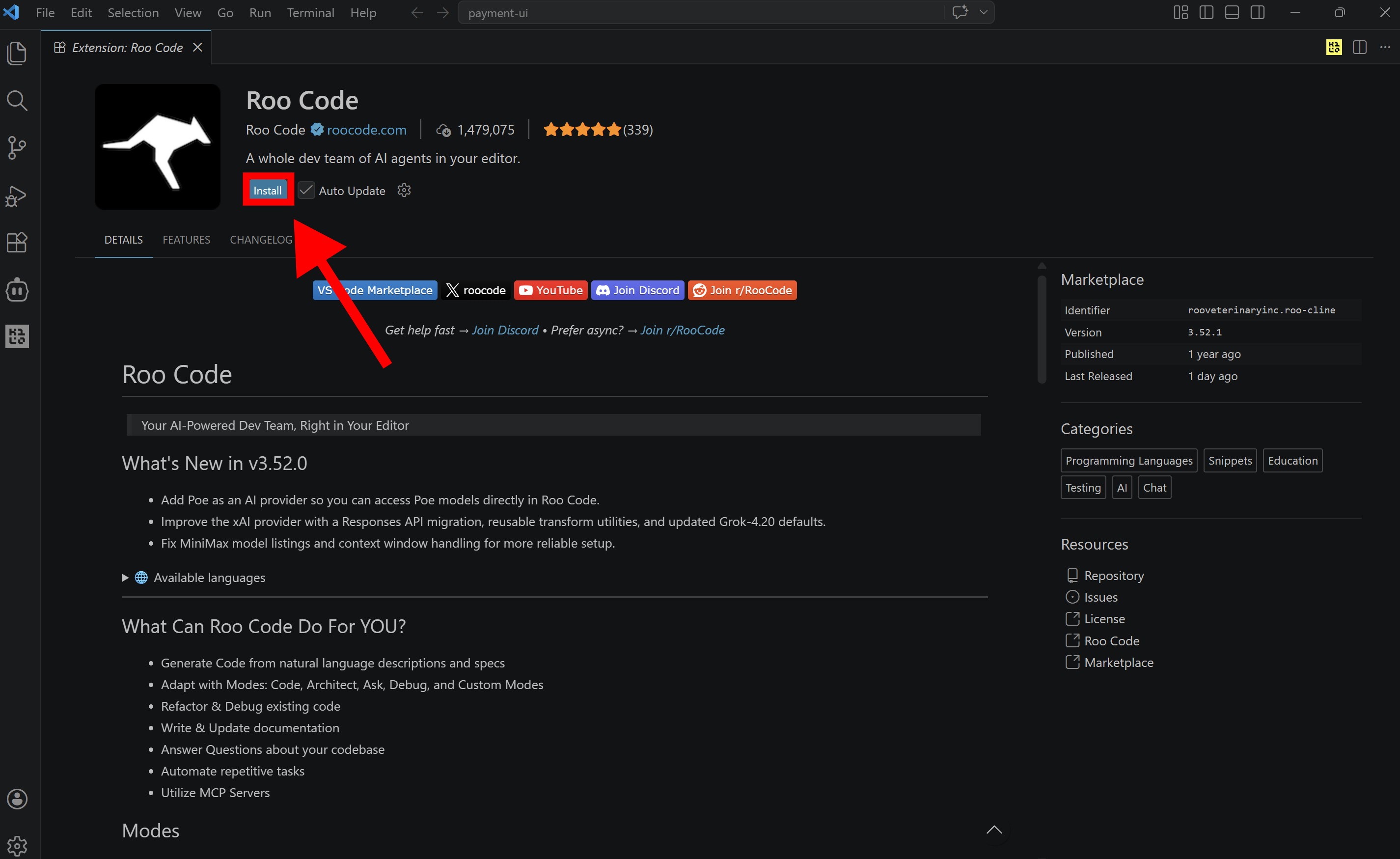
When prompted by your browser, allow it to open Visual Studio Code, then click Install within the editor to complete the setup.
Step 3: Configure SiliconFlow APIs
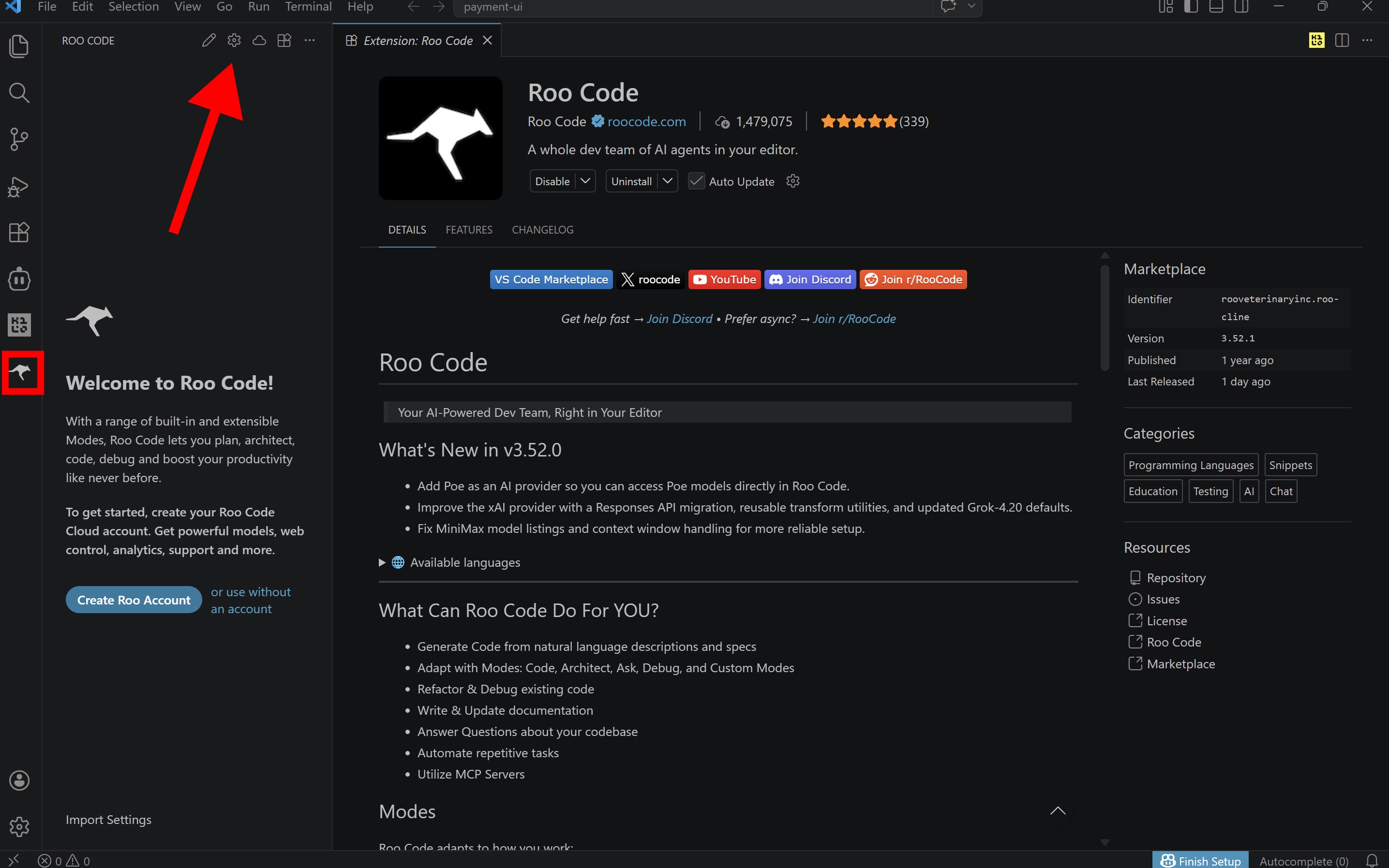
Open Roo Code: Click the Roo Code icon in the Activity Bar (left-hand side of VS Code).
Access Settings: Sign in (or continue without an account) and click the ⚙️ Settings (gear icon) in the top-right corner.
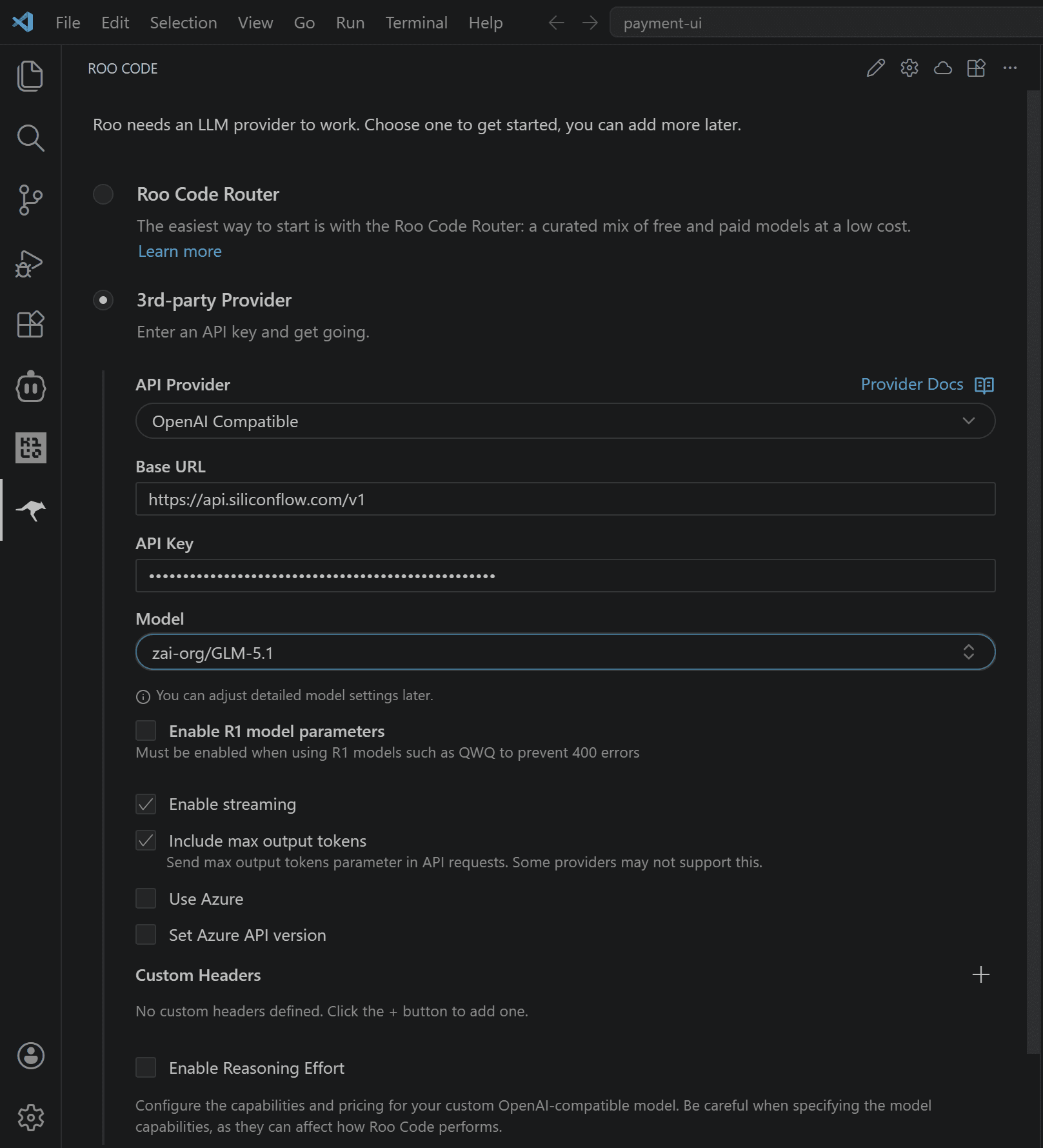
Select Provider: Choose 3rd-party Provider and fill in the following details:
API Provider: OpenAI Compatible
Base URL: https://api.siliconflow.com/v1
OpenAI Compatible API Key: Paste Your SiliconFlow API Key Here
Model ID: Enter the model you want to use, for example zai-org/GLM-5.1. You can browse the full model list at SiliconFlow's model library https://www.siliconflow.com/model
Click Finish to save your settings.
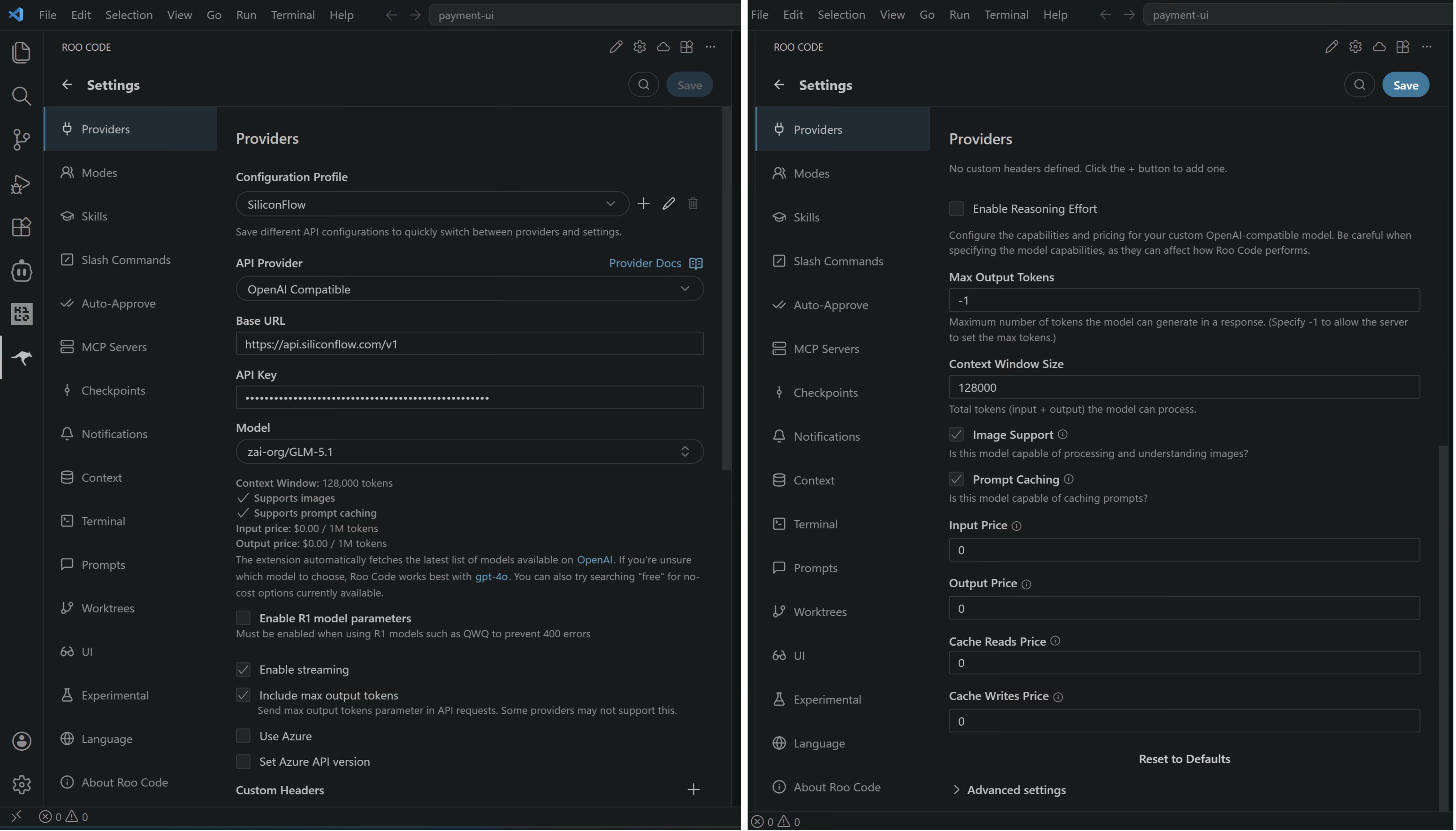
Fine-Tuning Your Profile
Rename your configuration profile to siliconflow for easier access later. You can also fine-tune your setup in the settings section:
Performance: Adjust max output tokens and context window size.
Capabilities: Enable image support and other advanced parameters.
Billing: View detailed prompt caching rates (Input, Output, and Cache pricing).
Step 4: Start Building with Roo Code
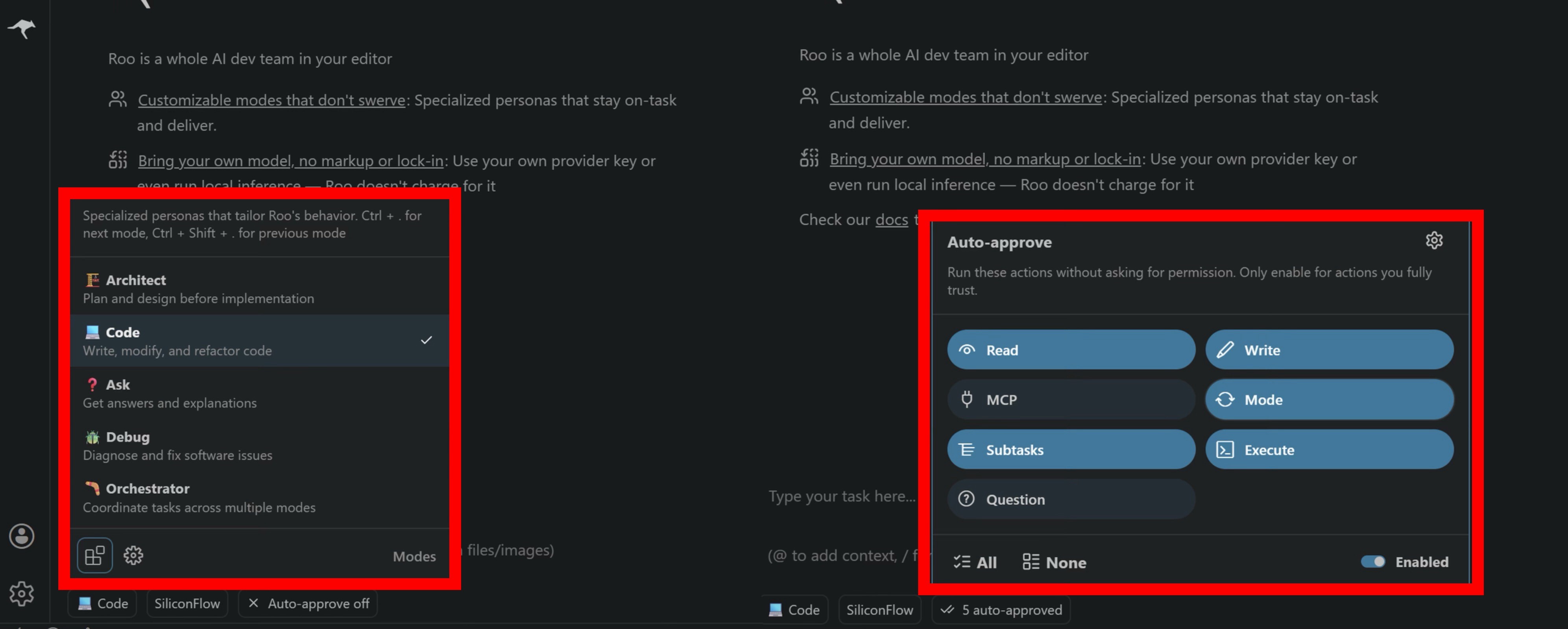
With your SiliconFlow APIs configured, you can now leverage Roo Code's diverse modes, powered by high-performance SiliconFlow models, to streamline your development workflow.
ROO Code Modes | What it does | Best for |
|---|---|---|
Architect | Plan and design before implementation | System design, high-level planning, architecture discussions |
Code | Write, modify, and refactor code | Implementing features, debugging, general development |
Ask | Get answers and explanations | Code explanation, concept exploration, technical learning |
Debug | Diagnose and fix software issues | Tracking down bugs, diagnosing errors, resolving complex issues |
Orchestrator | Coordinate tasks across multiple modes | Multi-step projects, automating complex workflows |
Each mode comes with its own tool access level and behavior, for a deeper dive, check out the Roo Code Modes documentation.
Beyond the defaults, you can tailor Roo Code's behavior by customizing existing modes or creating Specialized Assistants. See the Custom Modes documentation for detailed setup instructions.
You can also configure Auto-approve settings, enabling Roo Code to run specific commands seamlessly without asking every time.
Already Using OpenRouter?
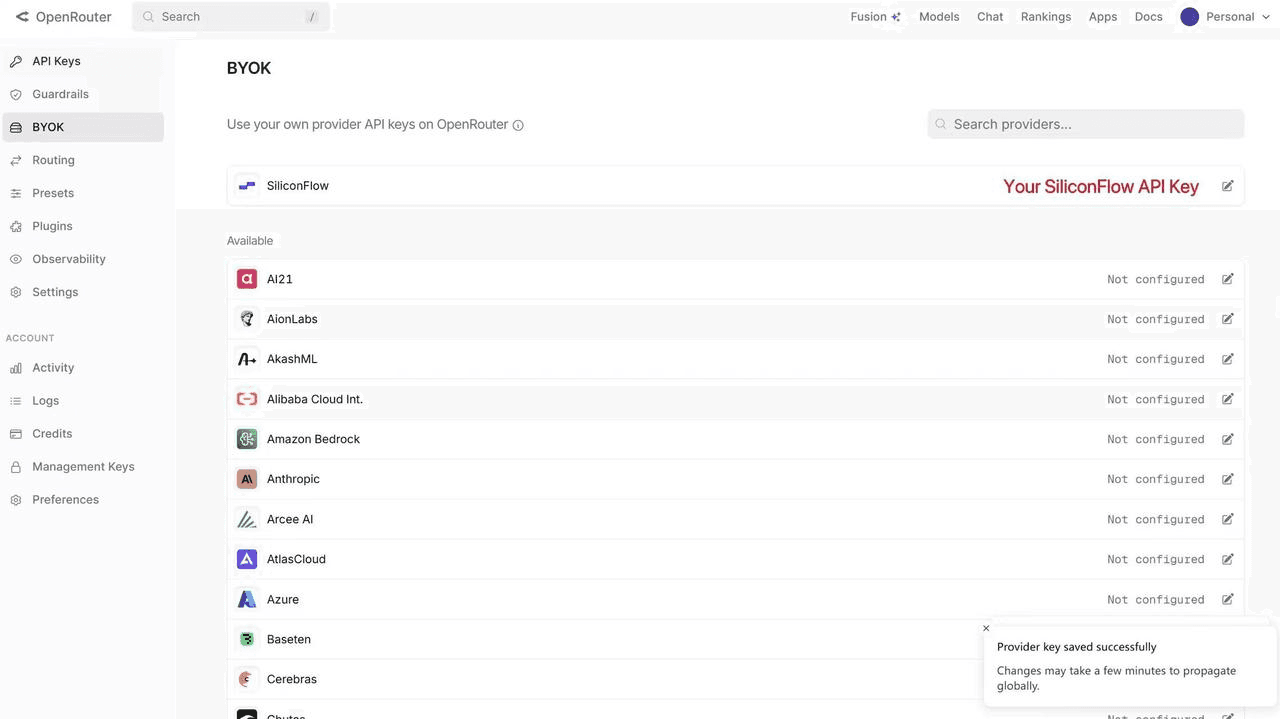
If you're managing models across multiple platforms, you can now connect your SiliconFlow API key to OpenRouter using BYOK, so you get a unified workflow without switching between accounts.
Once connected:
Requests draw from your SiliconFlow balance first
Billing and rate limits stay in your SiliconFlow account
OpenRouter's fallback routing still works to improve reliability
Bonus: OpenRouter waives platform fees on your first 1M BYOK requests per month.
Resources
Roo Code
Website: https://roocode.com/
Discord: https://discord.gg/roocode
OpenRouter
BYOK Setting: https://openrouter.ai/workspaces/default/byok
Roo Code on OpenRouter: https://openrouter.ai/apps/roo-code
SiliconFlow on OpenRouter: https://openrouter.ai/provider/siliconflow
SiliconFlow
Website: https://siliconflow.com
API Documentation: https://docs.siliconflow.com
Model Library: https://siliconflow.com/models