Table of Contents

Open Design is an agentic vibe design workspace — often described as the open-source alternative to Claude Design. It turns a coding agent you already run (Claude Code, Codex, Cursor, Gemini CLI, OpenCode, and 20+ others) into a full design engine: give it a brief and a design system, and it streams back prototypes, landing pages, dashboards, pitch decks, images, and even video — all as editable project files you can export to HTML, PDF, PPTX, or MP4.
SiliconFlow is now available as a built-in provider in Open Design. Connect your API key in the Settings panel to access 200+ models, including DeepSeek, Kimi, GLM, Qwen, and more, through a single OpenAI-compatible API with pay-as-you-go pricing.
Step 1: Install Open Design
Desktop app (recommended)
The fastest path — no Node, no pnpm, no repo clone:
macOS (Apple Silicon & Intel) → open-design.ai or GitHub Releases
Windows (x64) → open-design.ai or GitHub Releases
Linux (AppImage) → GitHub Releases
After install, the app auto-detects every coding-agent CLI on yourPATH, loads 259+ skills and 142+ design systems, and is ready to go.
Docker (self-hosted)
From source
Requires Node ~24 and pnpm 10.33.x. Full details → QUICKSTART.md.
Step 2: Get your SiliconFlow API key
To get started, you'll need a SiliconFlow account:
Sign up at https://cloud.siliconflow.com/ — you can use Google or GitHub.
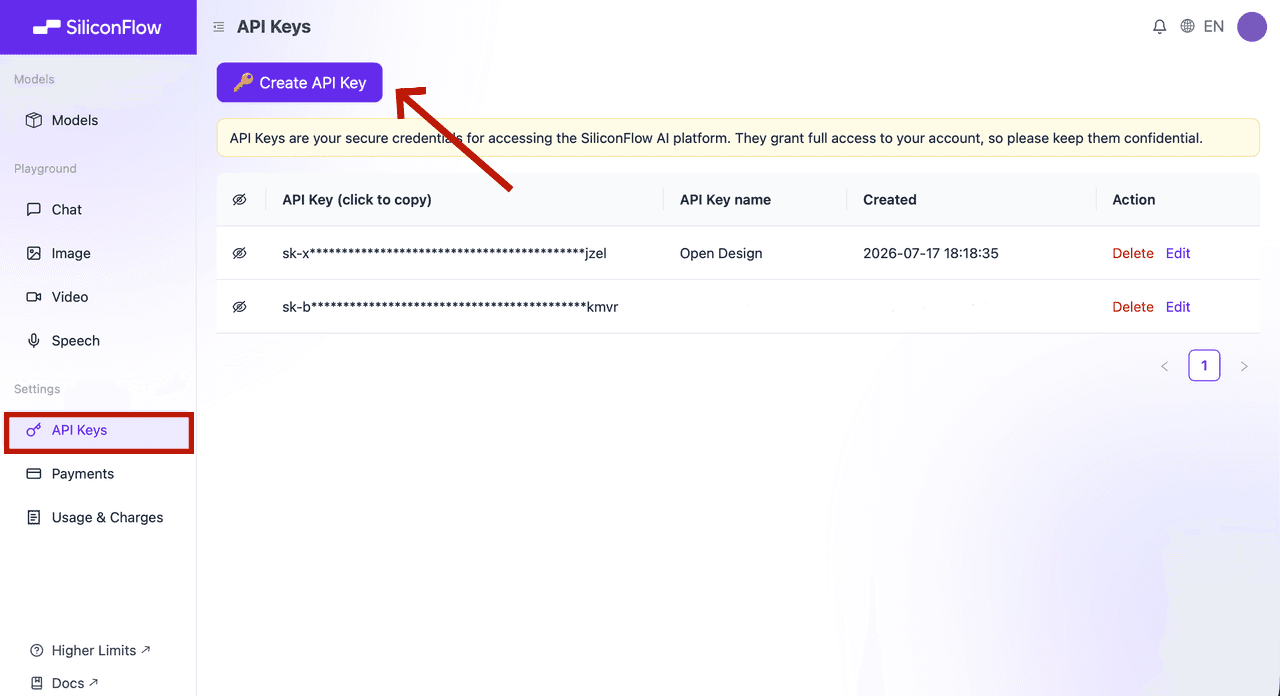
Open
API Keysin the dashboard.Click
🔑 Create API Key, name it so you can find it later, and confirm.Click the key to copy it.
🔐 API keys are credentials. Never include a real key in a document, screenshot, repository, or chat message.
Step 3: Connect SiliconFlow to Open Design
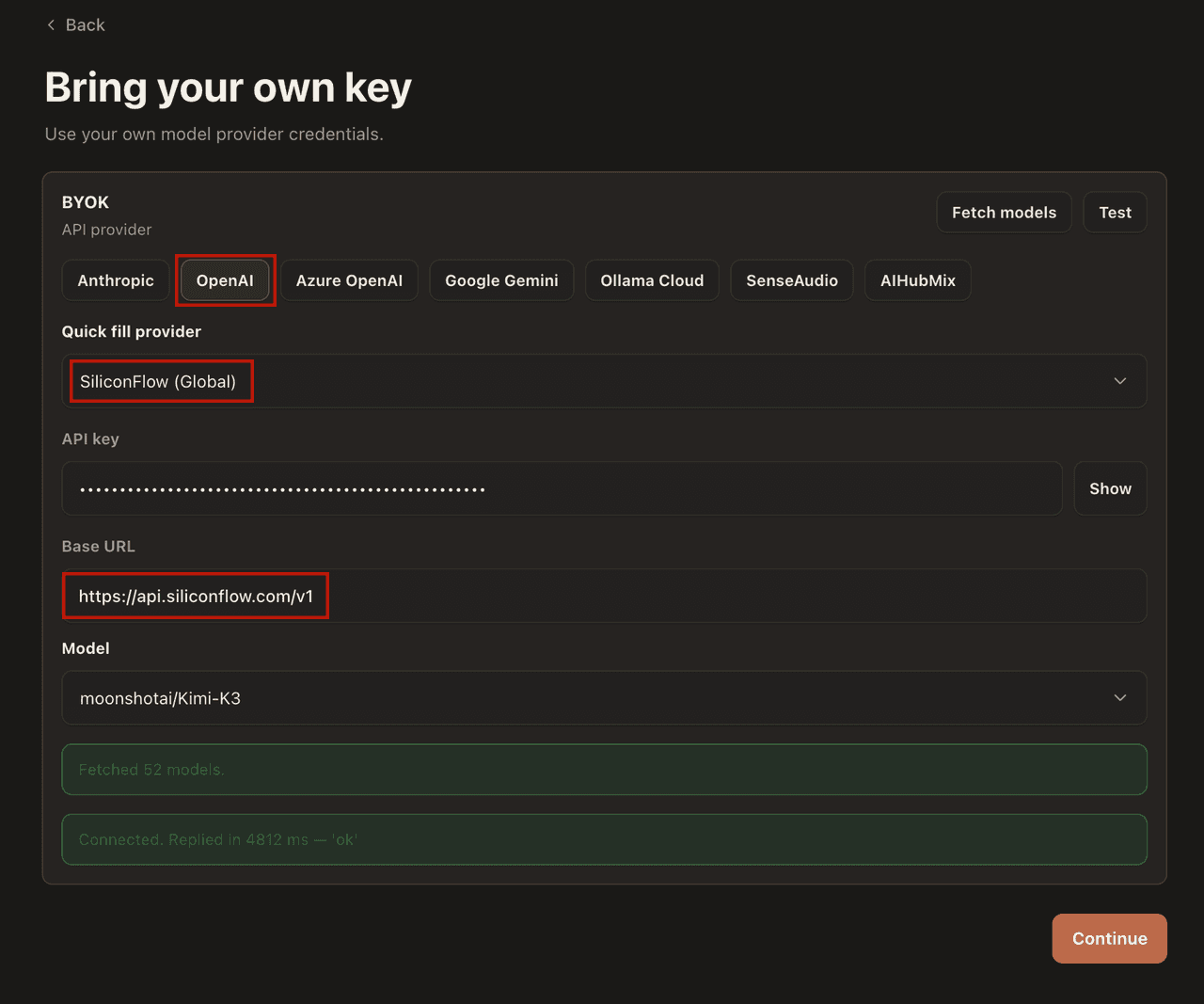
On the Open Design sign-in page, select Local coding agent or Bring your own key.
For Execution mode, choose BYOK.
For the API provider, choose OpenAI.
Select the SiliconFlow Global preset from the provider dropdown. This auto-fills the Base URL to
https://api.siliconflow.com/v1.Paste your SiliconFlow API key.
Choose a model: enter any model ID from the SiliconFlow model library, for example
deepseek-ai/DeepSeek-V4ormoonshotai/Kimi-K3.
That's it — Open Design will now route all BYOK runs through SiliconFlow.
Step 4: Generate your first design
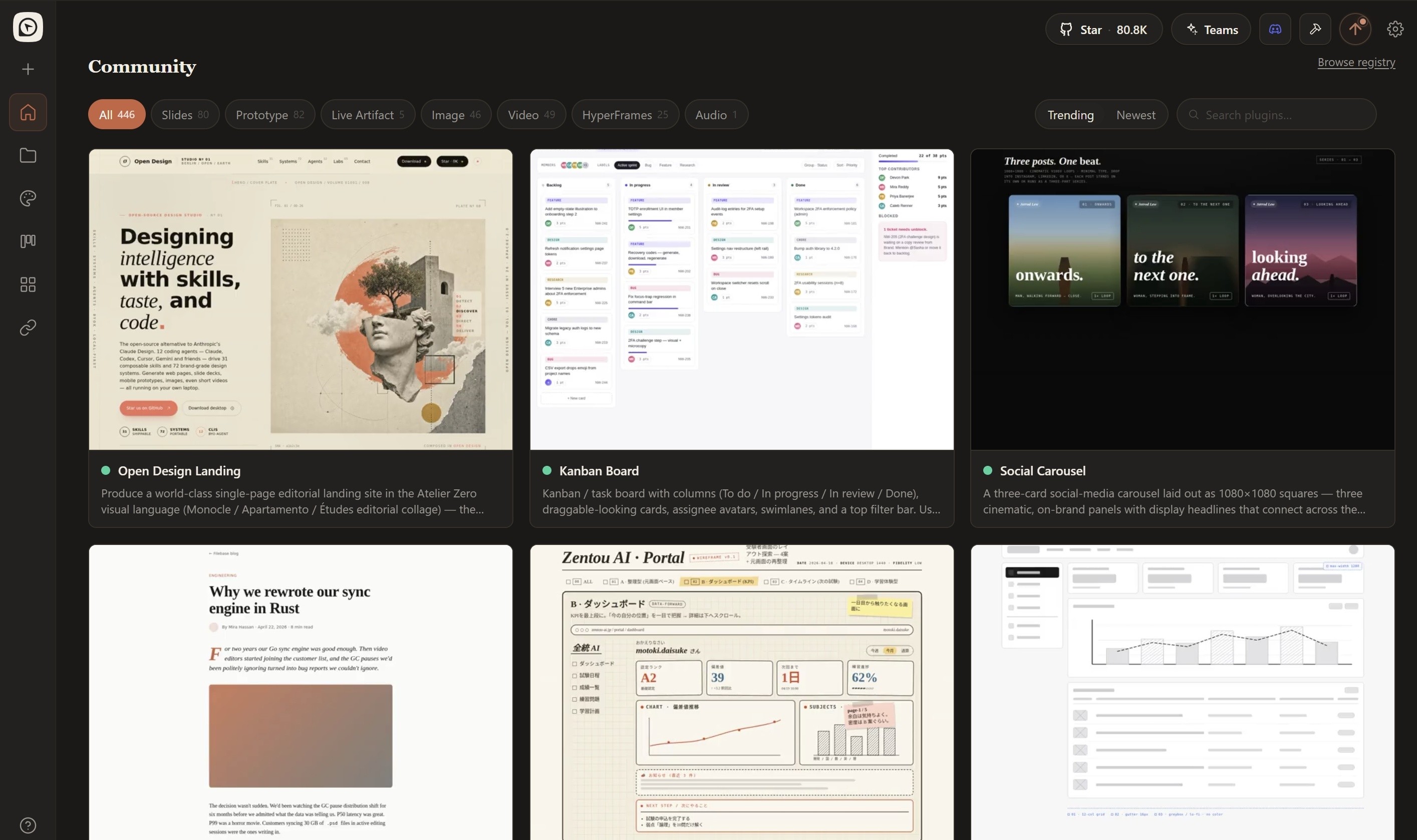
Head back to the Home page and select New Project or Start Designing.
Pick a skill (e.g.
canvas-design,ad-creative,twitter share card) or a design template (e.g.Website clone,Prototype,Live artifact).Type a brief in the chat box and hit run. For example:
Open Design streams the artifact into a sandboxed preview as it generates.
Review the output before accepting any changes to local files.
From there you can keep going:
Iterate in place: refine through follow-up prompts without starting over.
Export: download as HTML, PDF, PPTX, or ZIP.
Hand off to code: the artifact is real HTML/CSS, ready to drop into Cursor, Codex, or Claude Code.
What you can build
With SiliconFlow as the model provider, Open Design's full skill catalog is at your disposal:
Prototypes: landing pages, web apps, mobile screens
Pitch decks: exportable to PPTX and PDF
Dashboards: analytics panels, KPI views, decision rooms
Images & video: branded visuals and motion graphics
Switching models is just a settings change — a lighter model for quick iterations, a stronger one for complex projects.
Which model should you pick?
The model you choose affects both the quality of generated artifacts and generation speed. For design tasks, strong instruction-following and long-context capability matter most, because the agent needs to read a full DESIGN.md (often 2,000+ tokens) plus skill instructions and produce complete, production-ready artifacts.
Model | Highlights |
Kimi K3 | Excellent frontend generation, #1 on Frontend Code Arena, native 1M context. |
GLM-5.2 | Strong coding performance with reliable long-context UI generation. |
DeepSeek V4 Series | 1M context, agent-friendly, excellent value for everyday workloads. |
Explore More | SiliconFlow offers 200+ models from leading AI labs, including DeepSeek, GLM, Kimi, Qwen, MiniMax, Tencent Hunyuan, LongCat, Nex-agi, and more, so you can always choose the right model for your task. |
Ready to build? Create a SiliconFlow API key, connect it to Open Design, and start generating production-ready designs with 200+ models in minutes.
Resources
Open Design
Website: https://open-design.ai/
Quickstart: https://github.com/nexu-io/open-design/blob/main/QUICKSTART.md
Discord: https://discord.gg/mHAjSMV6gz
SiliconFlow
Website: https://siliconflow.com
API Documentation: https://docs.siliconflow.com
Model Library: https://siliconflow.com/models