Table of Contents
Use SiliconFlow as your AI provider, across Claude Code, Gemini CLI, Codex, OpenCode, OpenClaw, and Hermes Agent — managed from a single interface powered by CC Switch.
What is CC Switch?
CC Switch is a cross-platform desktop application (Windows / macOS / Linux) designed for the centralized management of supplier configurations for six major AI coding CLI tools: Claude Code, Gemini CLI, Codex, OpenCode, OpenClaw, and Hermes Agent
If you've used these tools, you're likely familiar with the tedious process of manually editing configuration files like settings.json, auth.json, and .env. Just select SiliconFlow preset, input your API key, and enable configurations with a single click.
Key Features
Feature | Description |
Provider management | 50+ built-in presets, one-click switching from main UI or system tray |
MCP management | Manage MCP server configs across 4 apps — edit once, sync everywhere |
Prompt management | Markdown editor synced to CLAUDE.md / AGENTS.md / GEMINI.md |
Skills management | Browse GitHub repos, install skill extensions with one click |
Usage stats | Token consumption tracking, cost monitoring, trend charts |
Local routing + failover | Auto-failover, circuit breaker, request throttling |
Session management | Browse and search conversation history across apps |
Cloud sync | Sync configurations across devices via WebDAV |
💡 CC Switch is open source. If you find it useful, consider giving it a ⭐️ on GitHub.
This guide will walk you through how to connect SiliconFlow to CC Switch and start powering your agentic workflows with 200+ frontier models in just a few steps.
Step 1: Prerequisites
Get Your SiliconFlow API Key
Before you begin, ensure you have a valid SiliconFlow account:
Register a SiliconFlow account at https://cloud.siliconflow.com/. You can sign up with Google or GitHub.
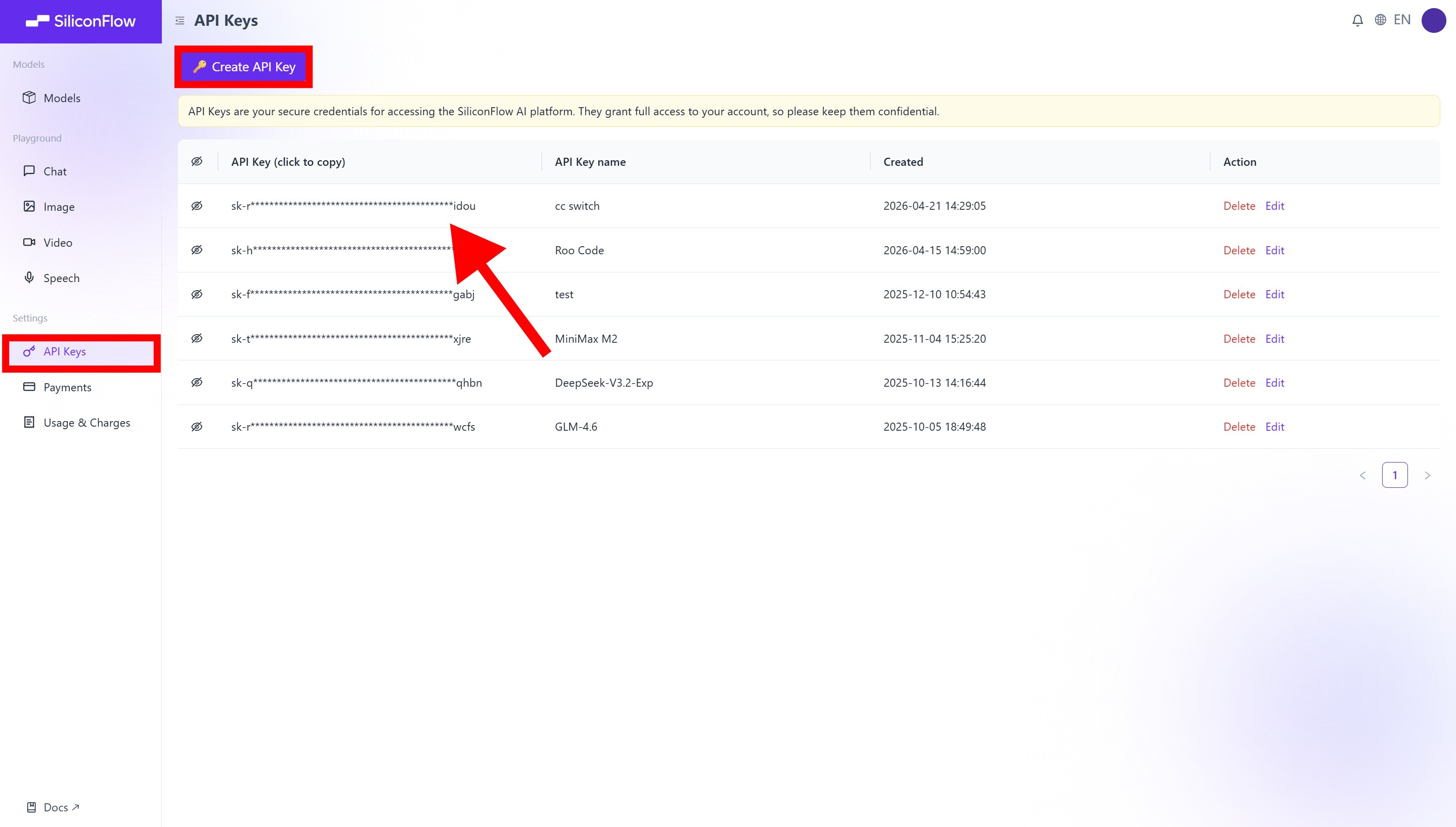
Log in and navigate to
API Keysin the dashboard.Click
🔑Create API Keyand add a name to your key to help you identify it later, then confirm to create it.Click the API key to copy it automatically.
⚠️ Note: Keep your API key secure; you will need it for the configuration in Step 3.
Step 2: Install CC Switch
Visit GitHub Releases to download the latest version of CC Switch.
macOS
Option 1: Homebrew (Recommended)
Option 2: Manual Installation
Download
CC-Switch-v{version}-macOS.dmg(Recommended). Open the DMG and drag CC Switch.app into your Applications folder.Alternatively, download
CC-Switch-v{version}-macOS.zipand extract it to use.
Windows
Option 1: MSI Installer
Download
CC-Switch-v{version}-Windows.msiand run the installer.
Option 2: Portable Version (No Installation Required)
Download
CC-Switch-v{version}-Windows-Portable.zip, extract, and runCC-Switch.exe.
Linux
Arch Linux
Debian / Ubuntu
AppImage (Universal)
Step 3: Configure SiliconFlow APIs
Select your CLI tool
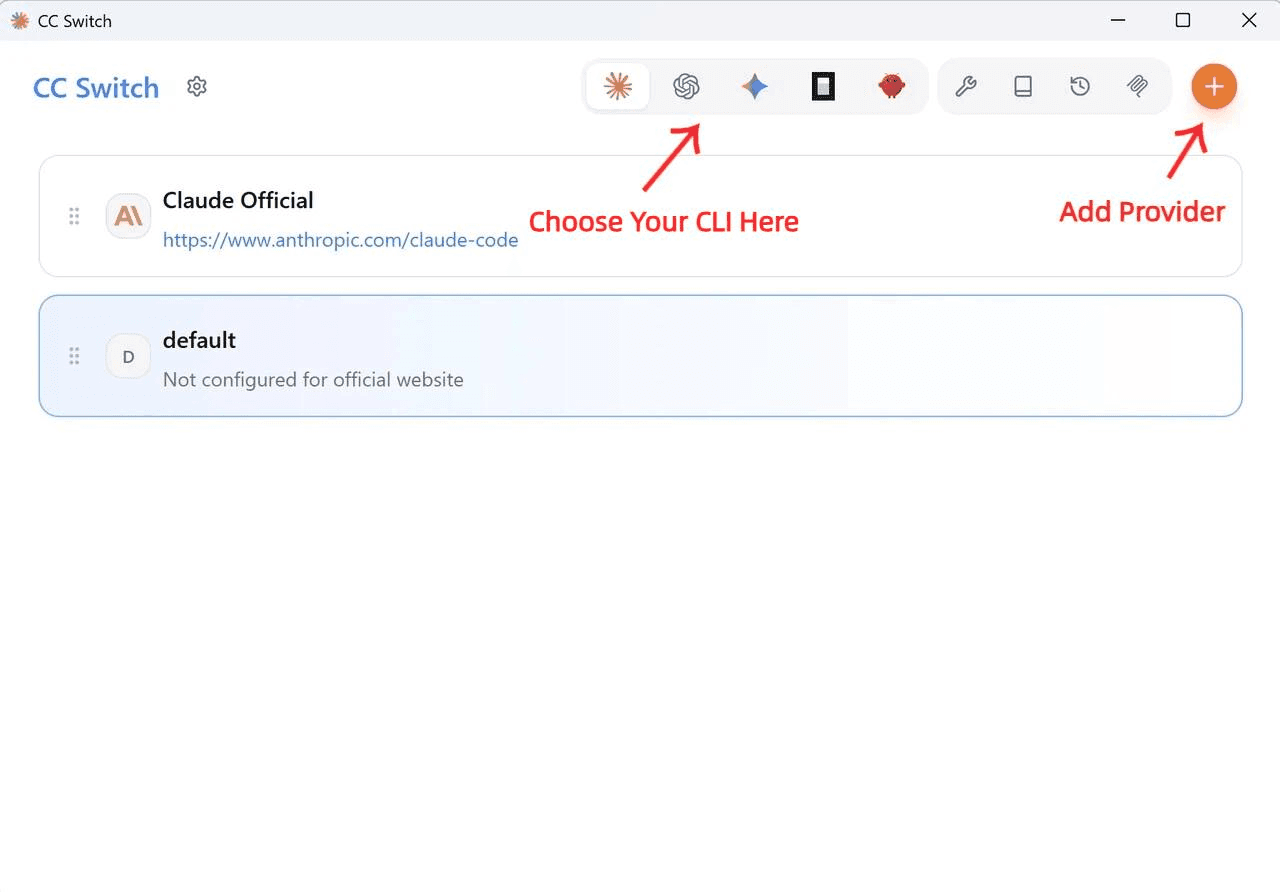
Open CC Switch and select the CLI tool you want to configure from the top selector (e.g., Claude Code).
Add SiliconFlow as a provider
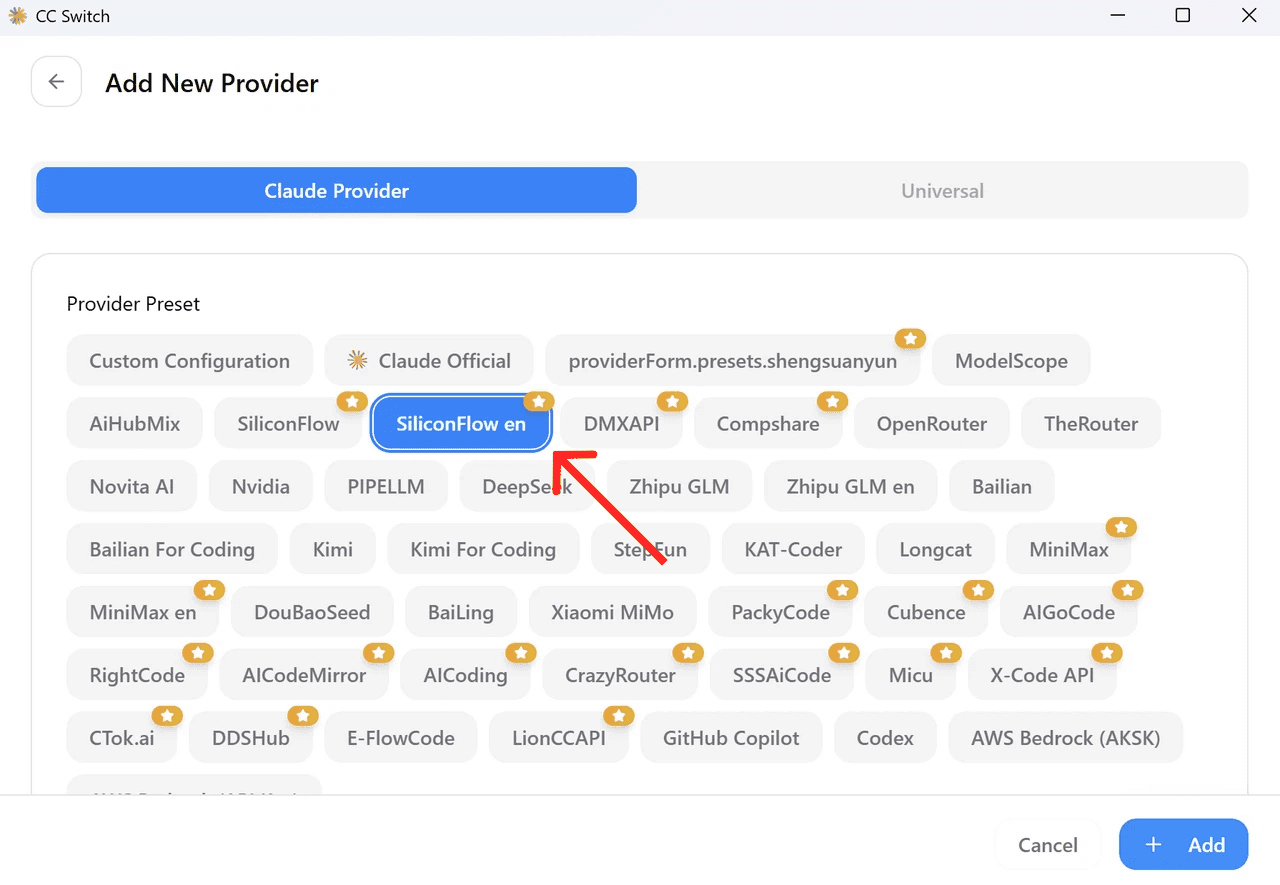
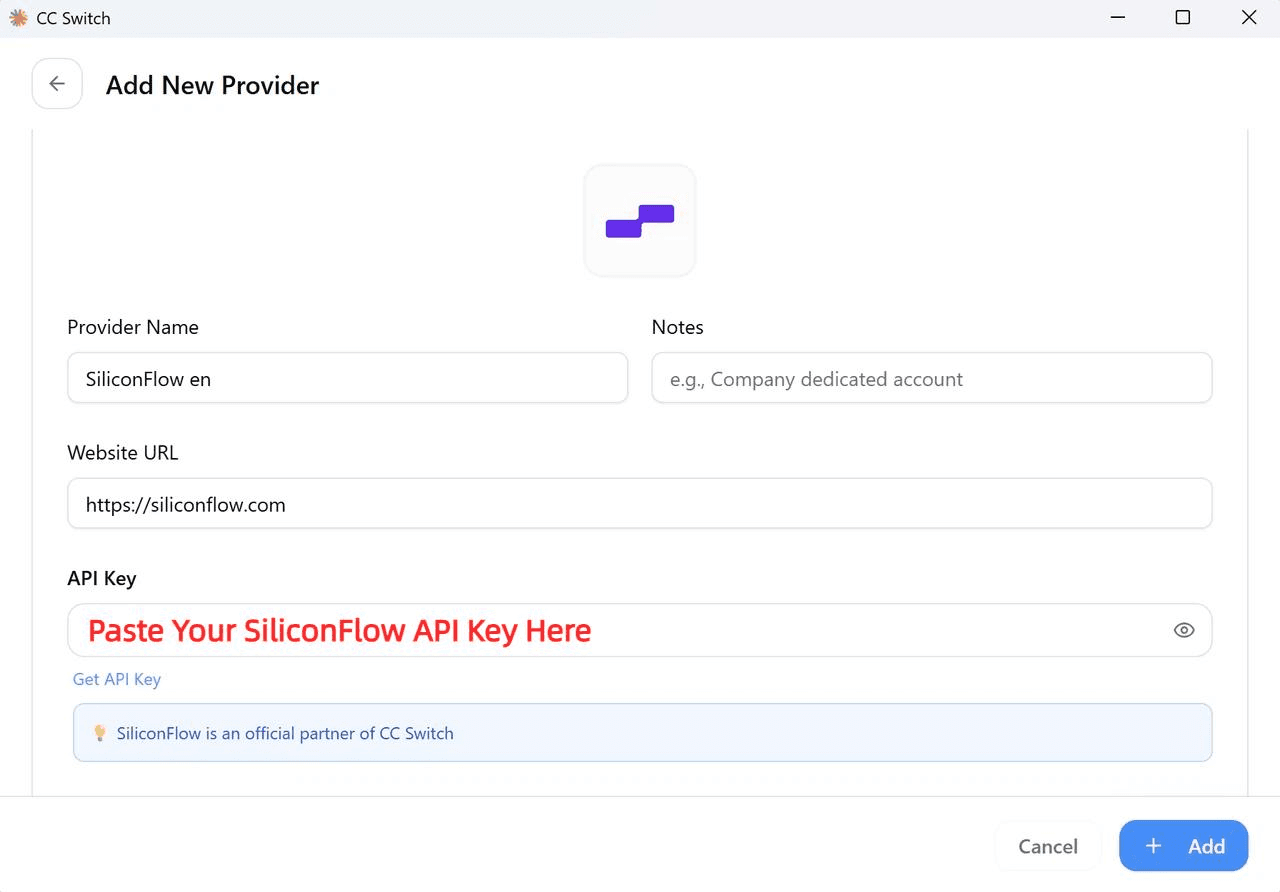
Click Add Provider and select SiliconFlow en from the preset list.
Paste your API key
Enter your SiliconFlow API key in the API Key field.
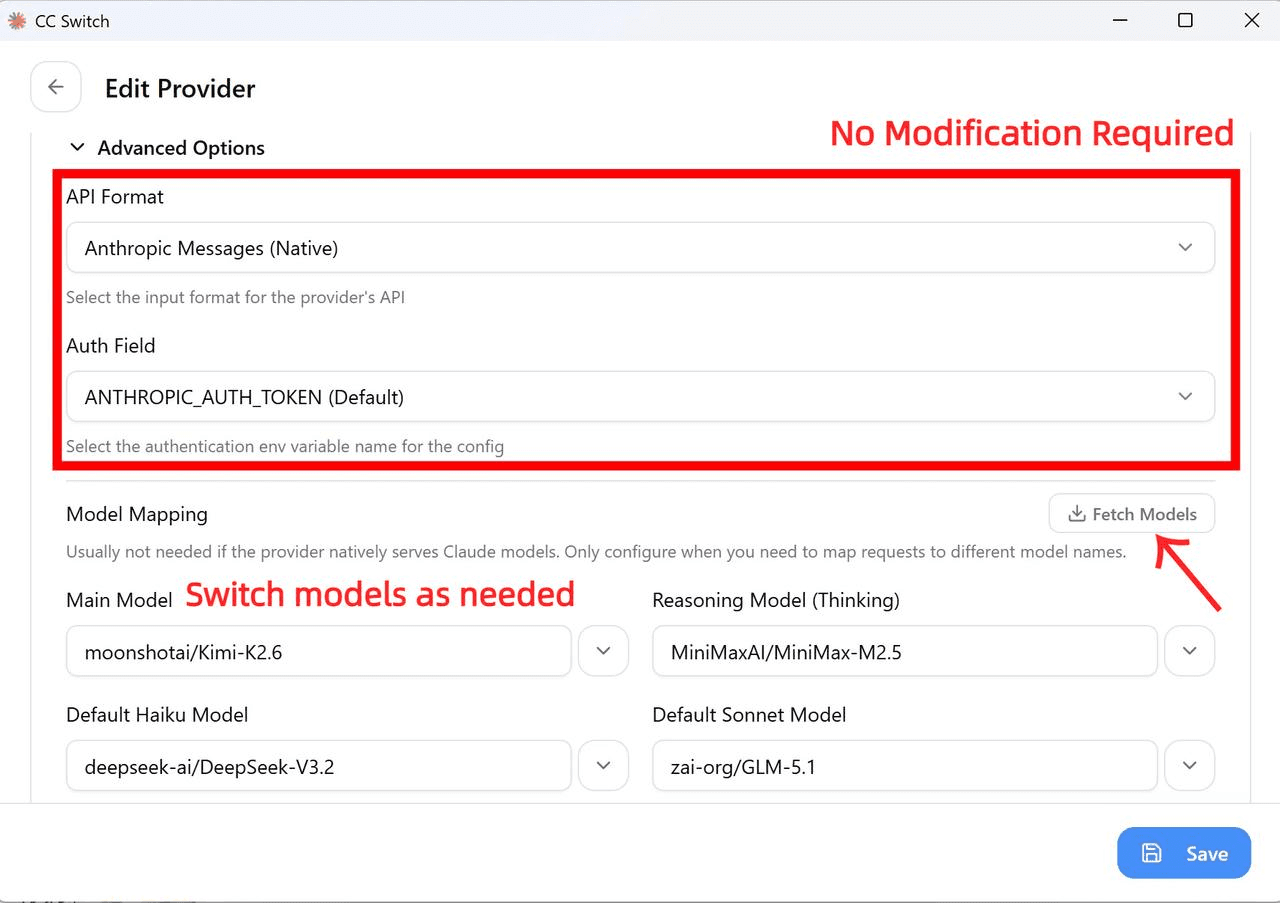
The API Format and Auth Field settings do not need to be changed — the preset handles this automatically.
Fetch the latest models
Click Fetch Models to load the current SiliconFlow model library.
By default, CC Switch maps all model slots (Haiku, Sonnet, and Opus) to a single model. After adding SiliconFlow, you can manually edit the configuration to assign specific models to each slot based on your use case. See
Choose the Right Modelfor recommendations.
Save and enable
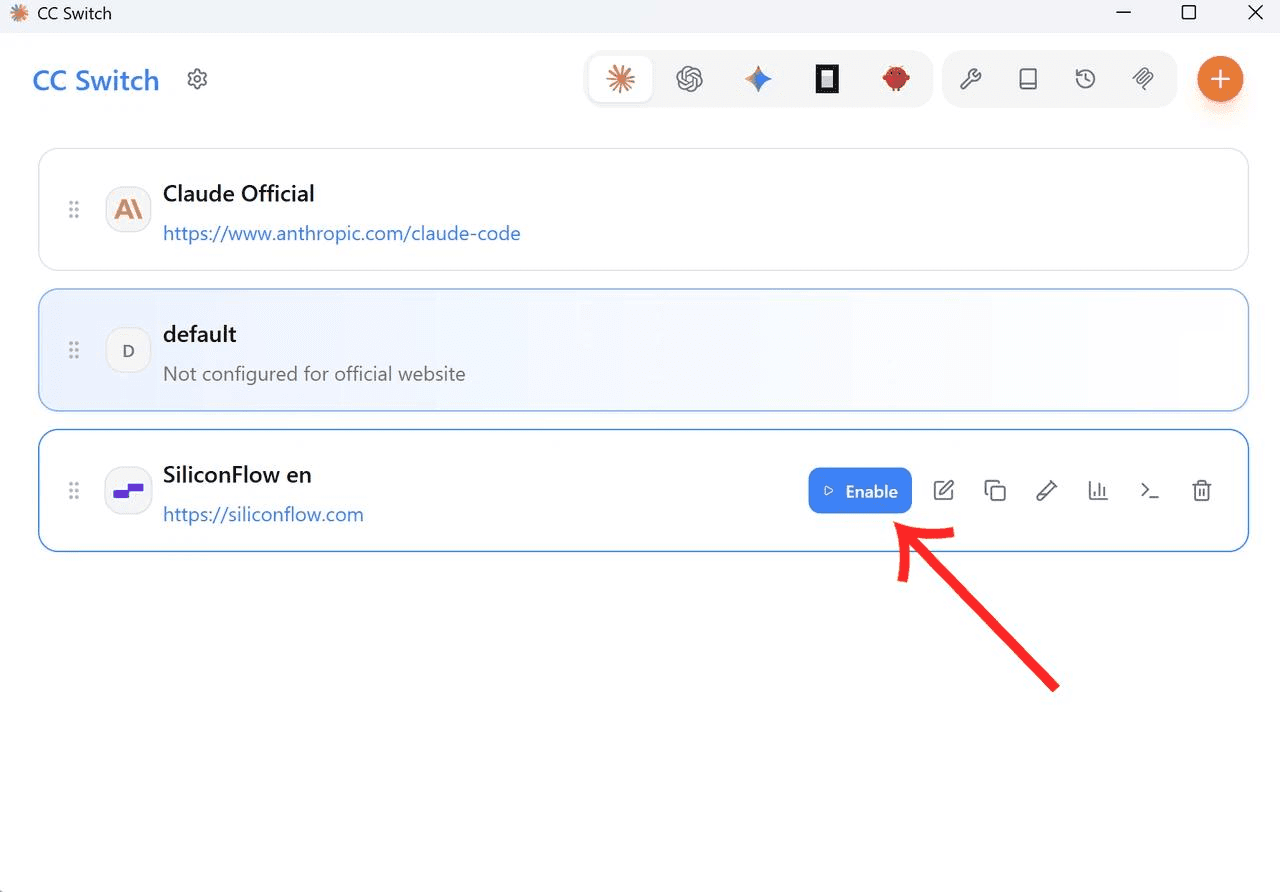
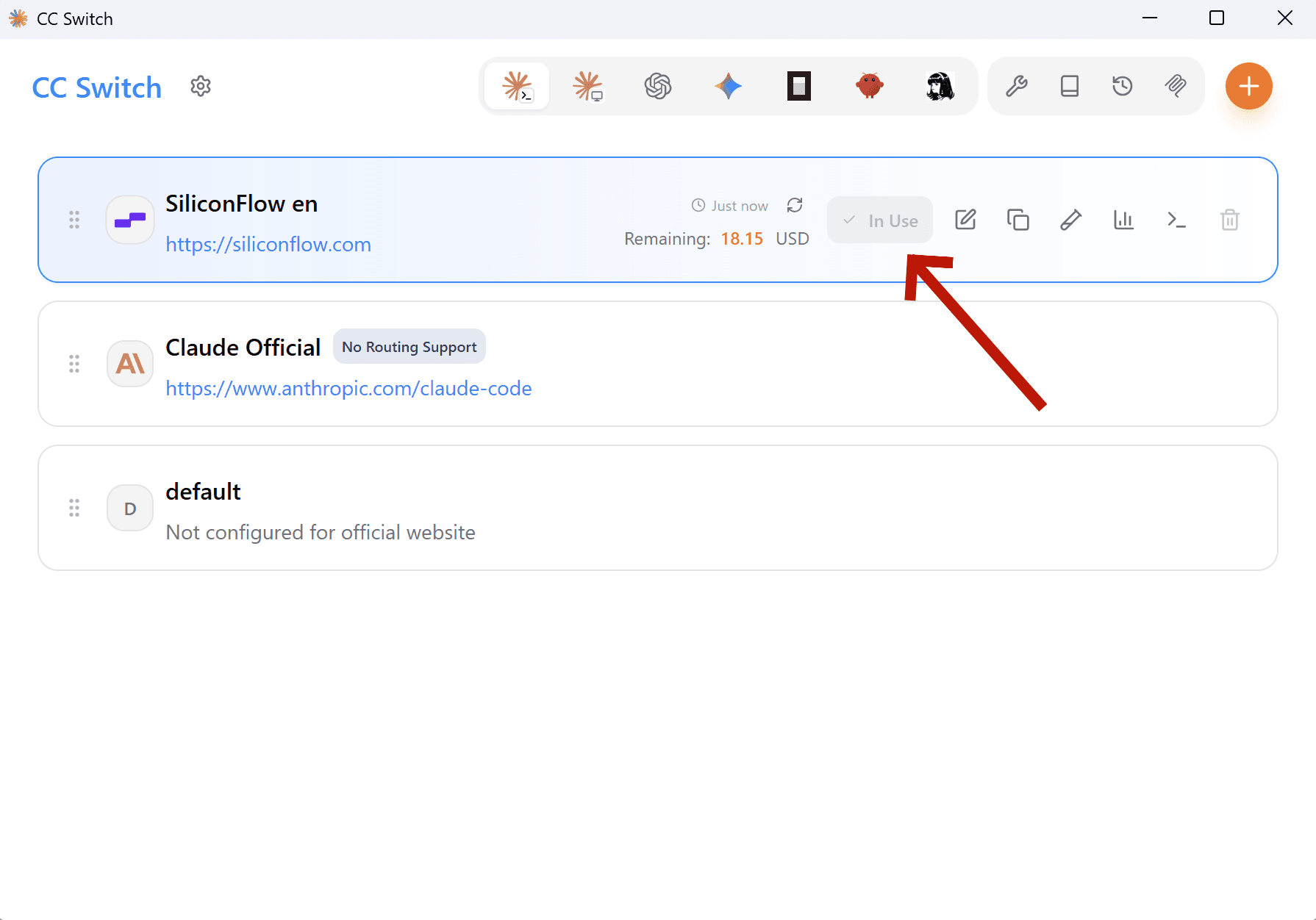
Click Save, then return to the main page and toggle SiliconFlow on as your active provider.
Once enabled, you can see your remaining SiliconFlow balance directly in CC Switch.
Step 4: Verify Your Setup
CC Switch supports hot reload — no terminal restart required after switching providers. Changes take effect immediately. Open your terminal, run claude, and enter a test prompt:
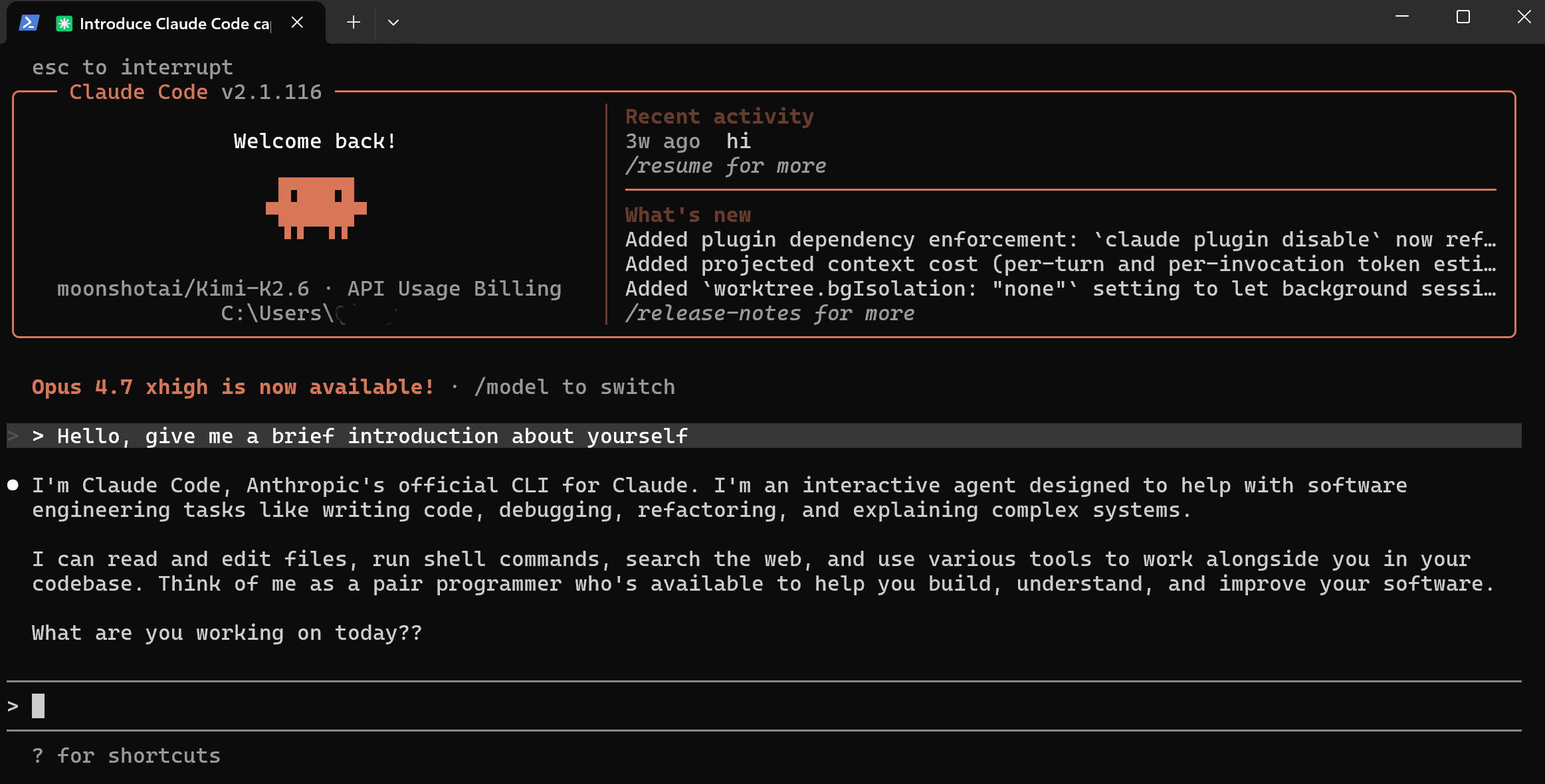
A successful response confirms your setup is working.
📌 Note: If Claude Code prompts you to log in or displays an onboarding flow on first launch, go to CC Switch → Settings → General and enable "Skip Claude Code initial setup confirmation", then restart Claude Code.
Choose the Right Model
Not sure which model to use? Here's a quick reference by use case.
Model | Best for | Key highlights |
Fast, cost-effective coding chat / large codebase | 1M context · 3 reasoning modes · best value in the V4 series | |
Complex reasoning / large codebase | 1M context · #1 open-source on math, STEM & competitive coding · approaches Opus 4.6 | |
Long-horizon agentic tasks | 58.4 on SWE-Bench Pro · long-horizon execution · iterative self-improvement | |
Long-horizon tasks / Frontend generation / multi-agent | Agent swarm architecture · long-horizon coding · prompt-to-frontend generation | |
Coding / agentic workflow / office work | SOTA Coding Tied Claude & agentic tool use · trained across 200k+ real-world environments | |
efficient, context-aware coding experiences. | Flagship-level agentic coding performance |
Browse the full model library: siliconflow.com/models
Already Using OpenRouter?
Bring Your Own Key
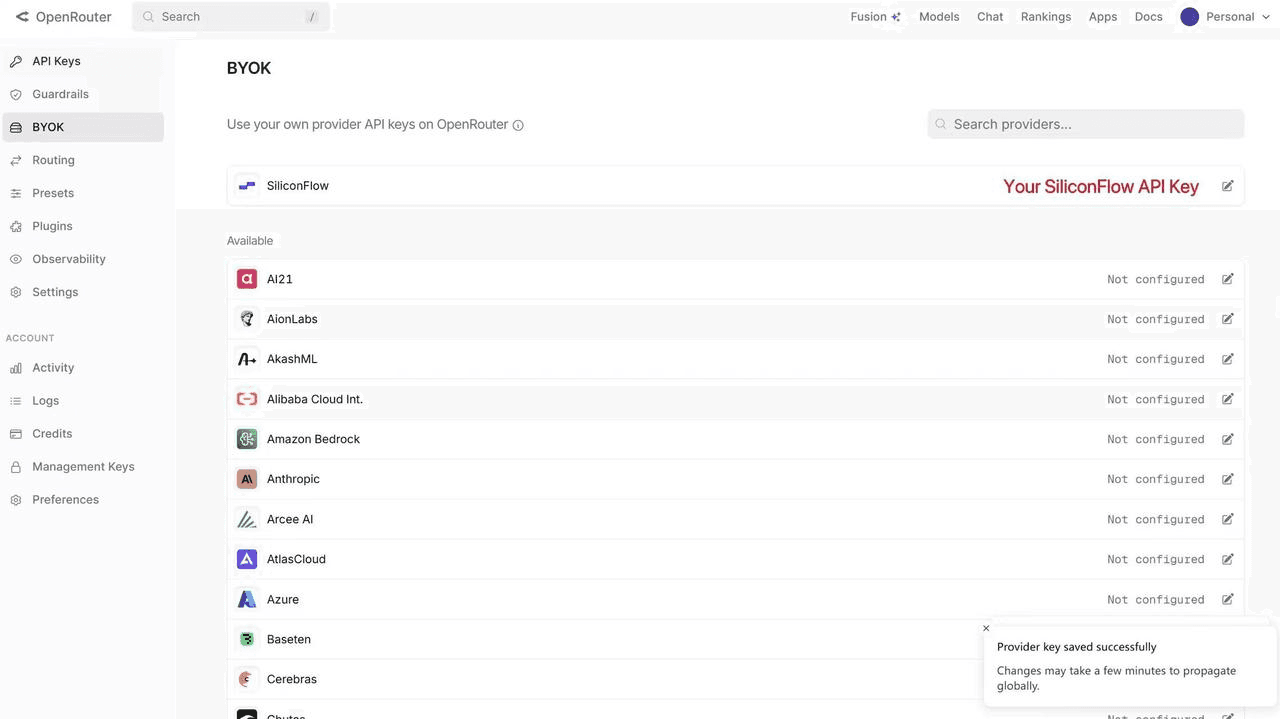
If you already have an OpenRouter account, you can connect your SiliconFlow API key via BYOK.
Once connected:
Requests draw from your SiliconFlow balance first
Billing and rate limits stay in your SiliconFlow account
OpenRouter's fallback routing still works to improve reliability
Bonus: OpenRouter waives platform fees on your first 1M BYOK requests per month.
Cache More, Spend Less
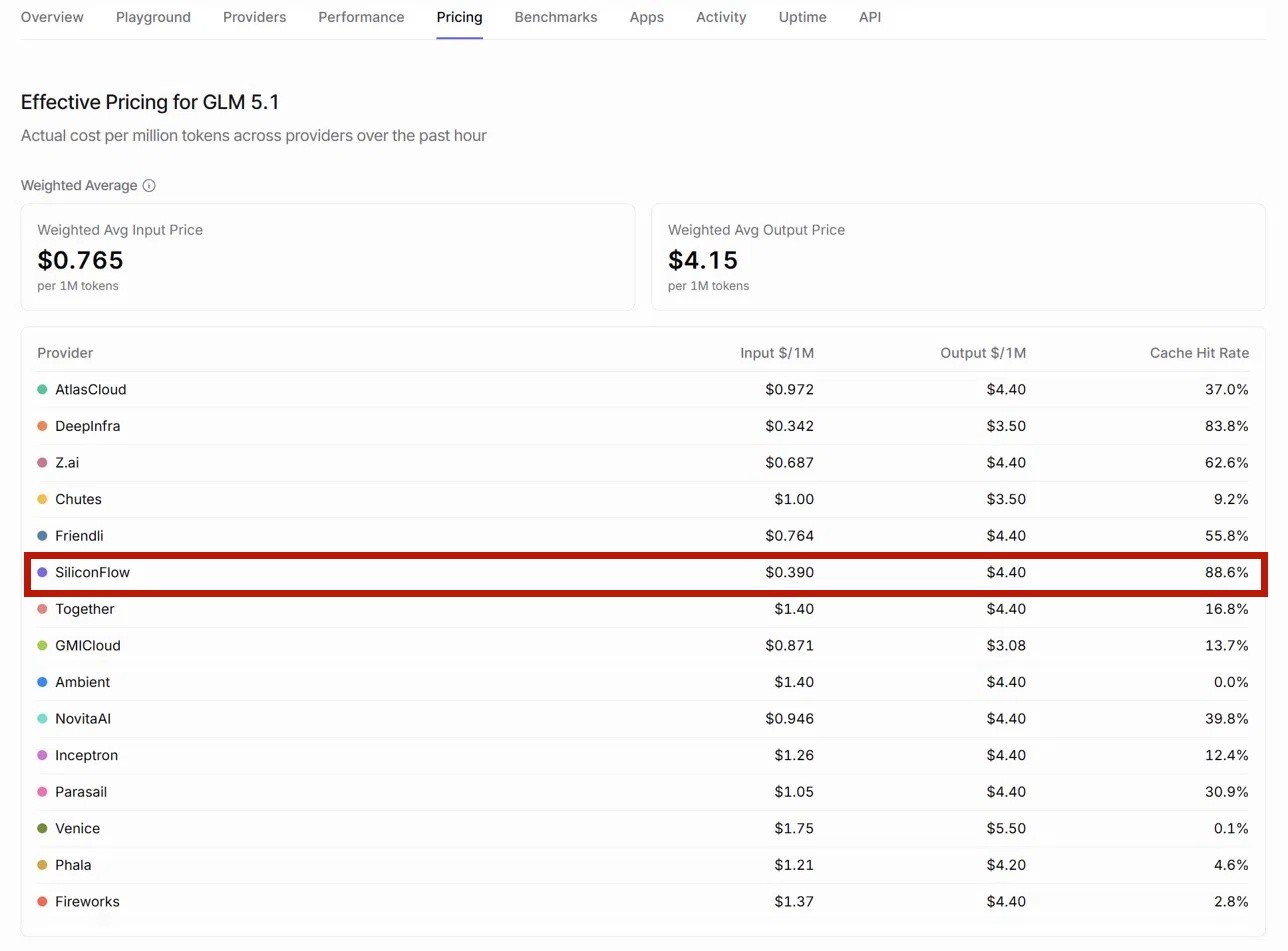
SiliconFlow consistently delivers high cache hit rates across models — for example, according to OpenRouter's provider performance data, SiliconFlow achieves the highest cache hit rate among all GLM-5.1 providers at 88.6%, significantly ahead of the competition. For you as a developer, this translates directly to faster response times and lower inference costs on repeated context.
Looking for more models? Browse the full model library at SiliconFlow Models or stay up to date with the latest releases on the SiliconFlow Blog.
Resources
CC Switch
GitHub: github.com/farion1231/cc-switch
Docs: User Manual
OpenRouter
BYOK Setting: openrouter.ai/workspaces/default/byok
SiliconFlow on OpenRouter: openrouter.ai/provider/siliconflow
SiliconFlow
Website: siliconflow.com
API Docs: docs.siliconflow.com
Model Library: siliconflow.com/models
Discord: Join our community